Periodic Triggers
The Periodic Trigger feature provides an automated way to generate and send event summary reports at predefined intervals. While optional, it is a powerful tool for managing event logs and streamlining routine reporting tasks. The following step-by-step guide will help you configure this feature to fit your reporting needs.
From the Task Group Configuration page:
- Navigate to
Optional Periodic Triggerand pressAdd
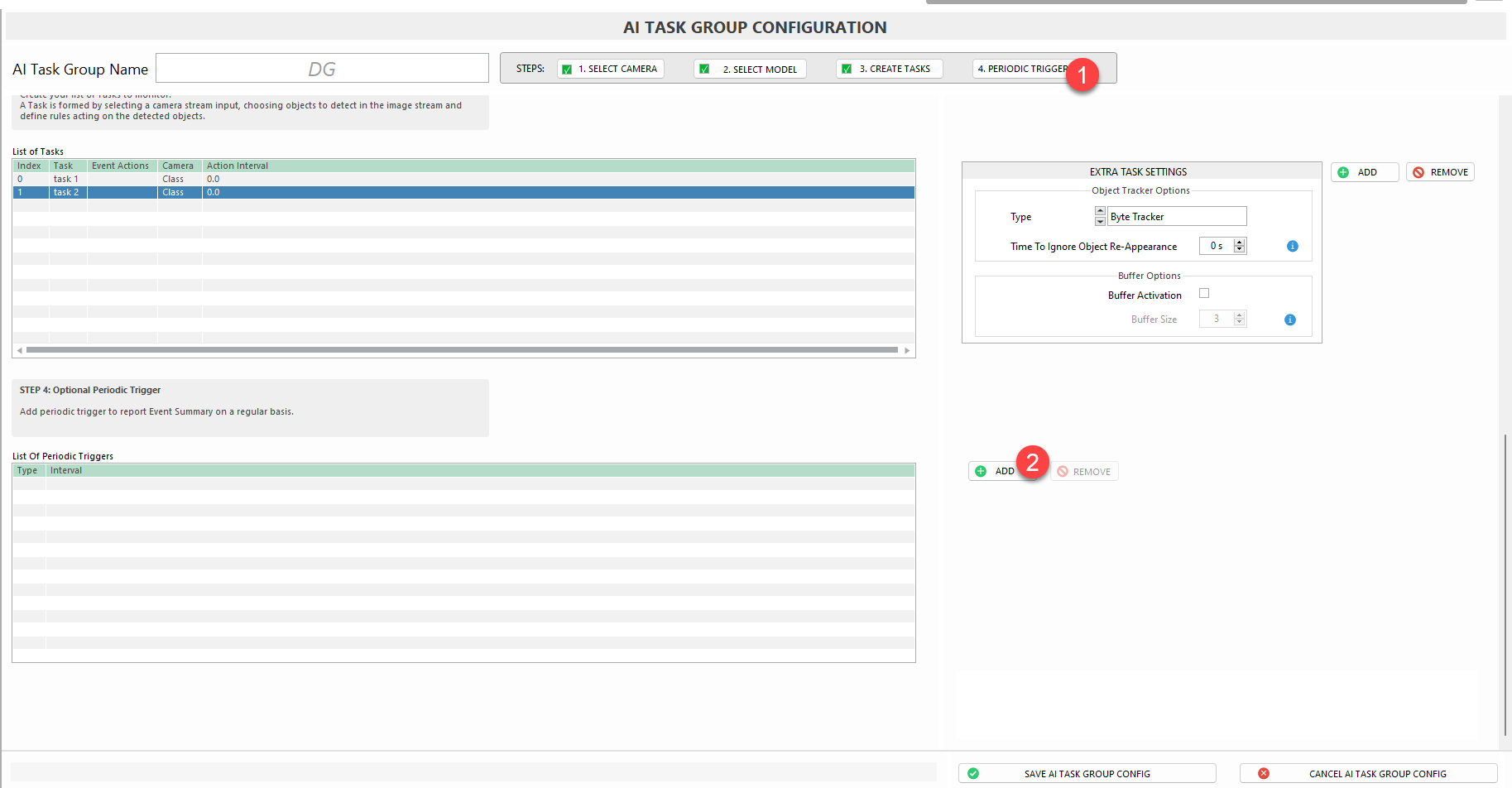
The periodic trigger configuration will appear
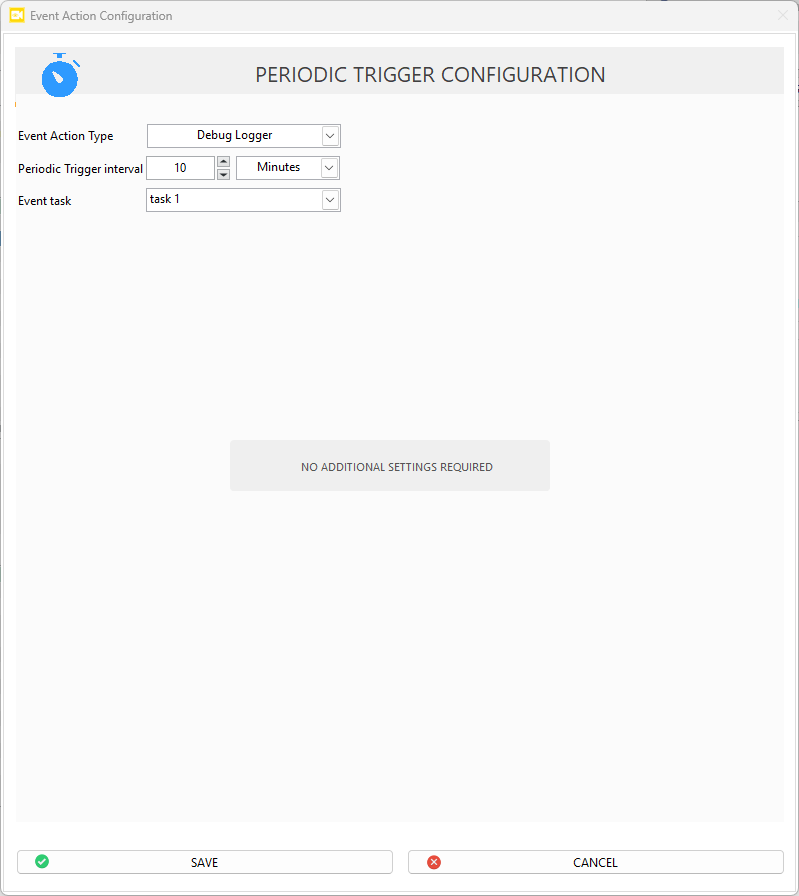
- Select Event Action Type
In the
Periodic Trigger Configurationwindow, use theEvent Action Typedropdown menu to choose how you want to handle periodic reports. Options include:
Debug Logger: Logs event details for debugging.File Logger: Saves event details to a file.HTTP: Sends event summaries via HTTP request.
- Set Periodic Trigger Interval This determines how frequently the system generates and sends event summaries.
- Enter a numeric value (e.g.,
10) - Select a time unit:
Seconds,Minutes,Hours, etc.
- Select AI Task Choose which tasks to include in the periodic report:
- Select
All Tasksto monitor every events. - Or pick specific tasks/groups to narrow the focus.
- Review and Save Configuration
- Review your selected settings.
- If there are no extra options needed, you'll see
No Additional Settings Required. - Click
Saveto apply
Example Use Case
To log all system events every 10 minutes for debugging:
- Set
Event Action TypetoDebug Logger - Set
Intervalto 10 minutes - Choose
All Tasks
This setup ensures automatic logging every 10 minutes for future analysis.